Top 10 Ways to Hide Messy Cables Behind a TV Stand?

Time:2026-10-29 Author:Aria
0%

A clean television setup can make a room feel calmer, but tangled cords have a way of stealing attention. They collect dust, catch the light, and can turn a neat media console into a cluttered corner. How to hide messy cables behind a TV stand? The best approach depends on your furniture, outlet location, and how often you connect devices. A few simple changes can help, from bundling cords along the stand’s rear legs to routing them through a cable sleeve or wall-mounted raceway. Small details matter. Leave enough slack to move components, and keep plugs easy to reach.

This guide explores ten practical ways to manage cables without making your setup harder to use. You’ll find options for renters, compact rooms, and stands with open shelves, along with tips for choosing clips, ties, and covers. Measure the route before buying anything; a raceway that looks right online may not fit behind a narrow console. Avoid pinching cords under furniture, blocking ventilation, or connecting more devices than a power strip is rated to handle. Not every solution will look perfect. Sometimes one visible cord is safer and easier to maintain than a hidden, tightly packed bundle. The goal is a tidier setup that stays accessible, secure, and realistic for everyday use.
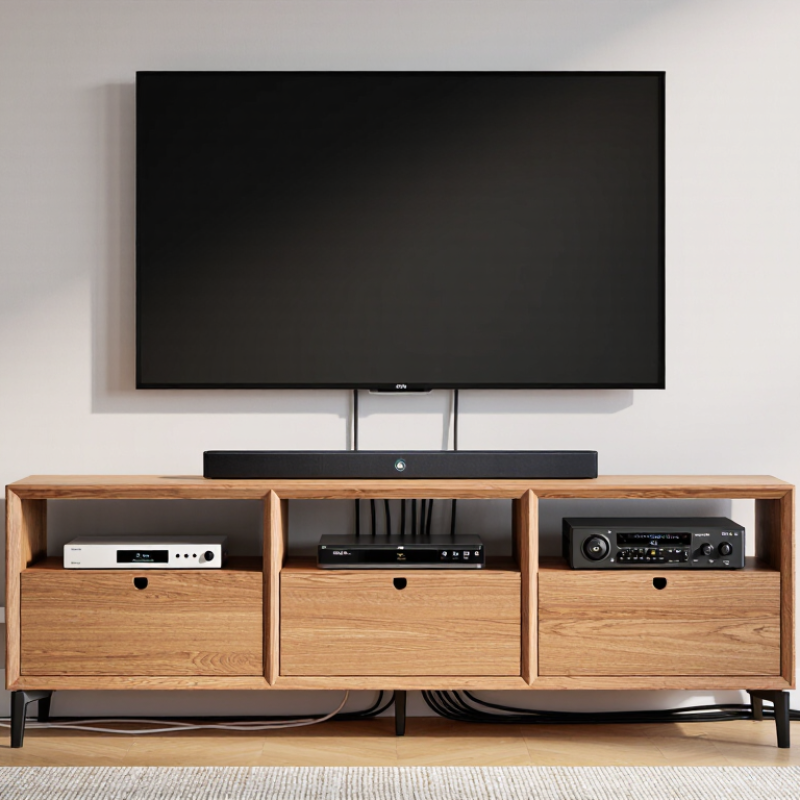
Top 10 Ways to Hide Messy Cables Behind a TV Stand?

Sort the 10 methods by cable type; HDMI 2.1 supports up to 48 Gbps

For power cords, use an under-stand cable tray to lift slack off the floor, adhesive clips along a rear leg, or a floor raceway where a cord must cross open space. Choose a raceway that fits the cord without pinching it. Keep power cords accessible, and do not hide ordinary cords inside a wall. Neat, not trapped.

For HDMI cables, a flexible sleeve gathers several leads, while reusable hook-and-loop ties control slack without crushing the cable. Rear-panel hooks keep connectors from dangling, and choosing a suitable shorter cable avoids extra loops. HDMI 2.1 supports up to 48 Gbps, but the cable must also be rated for the signal you need. A tight bend can cause trouble. It is easy to focus on appearance and overlook strain at the connector.

For Ethernet, audio, and USB leads, label both ends before routing; small tags make later changes less frustrating. A ventilated cable box can conceal adapters and excess low-voltage slack, while a separate tie bundle keeps network and audio cables easy to trace. Avoid overfilling the box, since warm adapters need airflow. I would leave a little slack for moving the stand, even if the result looks less perfectly tidy.

Measure and map cable routes; Category 6 is rated to 250 MHz

Measure the route before hiding anything. Note the distance from each device to the outlet, then sketch where cables will descend, turn, and cross the stand. Mark every turn. A paper map helps reveal whether a plug will be trapped behind a shelf or pulled tight when the TV swivels. Add a little service slack, but avoid loose loops that can snag on drawers. Label both ends; small tags are easier to read than guessing later.

For network runs, Category 6 is rated to 250 MHz under ANSI/TIA-568.2-D. That figure describes bandwidth, not guaranteed internet speed. IEEE 802.3an supports 10GBASE-T, but Category 6 runs may need to stay within 55 metres, depending on installation conditions; Category 6A supports 100 metres. Behind a TV, distance is rarely the problem. Tight bends, crushed sections, and bundled power and data cables are more likely trouble spots. Keep routes gently curved and separate signal cables from power cords where practical. I’d still recheck the map after installing the stand; measurements can miss a connector’s extra length. A neat route is useful, but accessible connections matter more.

Top 10 Ways to Hide Messy Cables Behind a TV Stand? - Measure and map cable routes; Category 6 is rated to 250 MHz
# Cable-hiding method Measure and map Useful for Practical notes
1 Bundle cables with reusable hook-and-loop ties Trace each cable from device to outlet and note the required path length, including a small service loop. A quick tidy-up when cables already reach the equipment. Group signal cables separately from power cords where practical. Avoid tightening ties enough to pinch or deform cables.
2 Attach an under-desk cable tray to the stand Measure the clear width beneath the shelf and check the tray depth against the stand and wall clearance. Power strips, adapters, and extra cable length. Keep adapters ventilated and accessible. Confirm the mounting method is suitable for the stand material and its load.
3 Use a surface-mounted cable raceway Measure the route along the wall or stand, then add enough length for corners and endpoints. Cables running visibly along a wall, baseboard, or furniture edge. Choose a raceway with enough internal capacity for the cable bundle. Follow its installation instructions and keep mains and low-voltage wiring appropriately separated.
4 Route cables through existing stand openings Map the entry and exit points and check that openings are large enough for the connectors, not just the cable. TV stands with rear panels, shelves, or cable-management holes. Use a smooth grommet or edge guard where a cable passes through a sharp-edged opening.
5 Fit adhesive cable clips along the back of the stand Mark clip positions along the planned route, leaving room near plugs and device ports. A few individual cables that need neat, fixed paths. Clean and dry the mounting surface first, and check the clip’s size and adhesive compatibility with the furniture finish.
6 Use a cable sleeve for a group of wires Measure the bundled route from the TV to the stand’s cable exit and account for bends. Several cables traveling together behind or beside the TV. Select a sleeve that accommodates the bundle without compressing it; leave connectors reachable for maintenance.
7 Label both ends of each cable Make a simple route map listing each device, port, and cable path before bundling. Setups with multiple HDMI, network, audio, or power connections. Use labels that can be read without pulling cables out. Labels do not replace checking the connection at both ends.
8 Place a cable-management box beside or inside the stand Measure the available floor or shelf space, including clearance for the lid and cable exits. Hiding a power strip and excess cable slack from view. Use a box designed for cable management, keep ventilation openings clear, and do not overload the power strip.
9 Choose correctly sized, longer cables to avoid extensions Measure the complete route, including turns and the distance to each device, before buying a replacement cable. Cables that currently pull tight or cross the front of the stand. Avoid unnecessary excess length, sharp bends, and stretching. Verify that the cable type supports the device’s required connection and performance.
10 Use a suitable in-wall cable route where permitted Plan the entry and exit locations and check the wall structure and local electrical requirements before work begins. A clean wall-mounted TV installation with cables hidden inside the wall. Use cables and installation methods rated for in-wall use. Do not run ordinary power cords inside a wall; consult a qualified professional when required.

Note: Measure the full cable route before installation. Category 6 (Cat 6) twisted-pair cabling is rated to 250 MHz; this rating describes its frequency specification, not a guaranteed network speed.

Start with clips, sleeves, and ties before adding adhesive raceways

A tidy TV stand begins with tracing each cable from its device to the outlet. Unplug equipment before moving cords, and leave enough slack for a TV to swivel without pulling connections loose. Small changes help. Place low-profile clips along the rear edge of the stand to guide individual cables downward. Avoid pressing clips onto dusty wood; they may peel off after a few days. A soft sleeve can gather several thin HDMI or audio cables, while reusable ties keep extra length loosely coiled. Don’t cinch power cords tightly or trap them against warm equipment. I’ve found that a bundle can look neat from the front and still snag when a drawer opens, so check the whole route.

Tips: Label both ends before bundling. Keep plugs accessible, and leave a little slack near devices. If a tie makes the cables flatten, loosen it.

Add an adhesive raceway only when clips, sleeves, and ties leave a visible stretch of cable. Wipe the mounting surface clean and dry, then test the route with painter’s tape before sticking anything down. Keep the channel away from vents and avoid tight bends at the corners. A raceway that stops just above the baseboard may look cleaner, though matching its path to the wall can take a second try. Don’t force a perfect line; access for cleaning and repairs matters more.

Conceal power leads in a listed box; NEC 400.12 bars cords through walls

A TV stand can hide a tangle, but the power cord still needs a safe route. Keep flexible power cords visible and accessible; NEC 400.12 prohibits routing them through walls, ceilings, floors, doors, or similar openings. For a cleaner setup, use a listed cable-management box or surface-mounted raceway rated for its intended use. Keep plugs easy to inspect, and leave ventilation space around power adapters. Warm plastic is a warning, not a design detail.

The risk is worth taking seriously. The Electrical Safety Foundation International reports that extension cords are associated with about 3,300 residential fires each year. That figure is a useful reminder: hiding cords should not mean burying them or bundling them tightly. I’ve found that measuring the path behind the stand first prevents a rushed, cramped installation. Still, a neat-looking setup can conceal a poor fit.

Tips: Place the listed box beside the stand, not inside a sealed cavity. Keep power cords separate from low-voltage signal cables where practical. Use short, properly rated cords, and never run them beneath rugs. Check for pinching when the stand moves. A small gap matters. If the cord or plug feels hot, disconnect it and reassess the setup.

Label and test every route; USB PD 3.1 supports charging up to 240 W

Before sliding a TV stand against the wall, label both ends of every cable. Use simple tags such as “TV power” and “console HDMI.” USB-IF’s USB Power Delivery 3.1 specification defines Extended Power Range charging up to 240 W: 48 V at 5 A. That ceiling requires compatible equipment and a cable rated for EPR; a USB-C connector alone proves nothing. Check the charger, device, and cable markings before routing them. Then connect each device and test its route while you can still reach it. Annoying, but useful.

Leave gentle bends behind the stand, not tight loops around its legs. Keep power cords from pinching under furniture, and leave ventilation openings clear. Run one cable at a time, then tug lightly to confirm it moves without stressing a plug. If a cable feels warm, disconnect it and check the equipment ratings and connections. A neat bundle can still hide a bad route. I’d rather see one slightly awkward label than guess later which lead powers the screen.

FAQS

Why should I map cable routes before moving the TV stand?

A quick sketch shows where cables turn, descend, or cross the stand. It can reveal a plug trapped behind a shelf.

How much slack should I leave behind the stand?

Leave enough slack for gentle movement, especially if the TV swivels. Avoid loose loops near drawers. A little slack helps.

What does the 250 MHz rating for Category 6 mean?

It describes bandwidth, not guaranteed internet speed. Category 6 is rated to 250 MHz.

Can Category 6 support 10-gigabit networking?

It can support 10GBASE-T over runs up to 55 metres in some installation conditions. Category 6A supports up to 100 metres.

What can cause trouble with network cables behind a TV?

Tight bends, crushed sections, and power cables bundled closely with data cables can cause problems. Keep routes gently curved.

How should I label cables before hiding them?

Label both ends with simple tags, such as “TV power” or “console HDMI.” Small labels beat guesswork later.

Does every USB-C cable support charging up to 240 W?

No. USB Power Delivery 3.1 allows up to 240 W with compatible equipment and a suitable cable. Check the markings.

How can I check a cable route before pushing the stand into place?

Connect each device and test its cable while the plugs remain reachable. Tug lightly to check for stress. Recheck the map, too; measurements can miss connector length.

Conclusion

How to hide messy cables behind a TV stand? Begin by sorting cables by type, such as power, HDMI, Ethernet, and USB, then measure each route and mark where cables need to run. Keep performance requirements in mind: HDMI 2.1 can support up to 48 Gbps, Category 6 cable is rated to 250 MHz, and USB Power Delivery 3.1 can provide charging up to 240 W. Allow enough slack for equipment movement while keeping signal and power cables organized separately where practical.

Start with simple solutions such as clips, sleeves, and reusable ties, adding adhesive raceways only when needed to guide cables neatly along the stand. Keep power leads in an appropriate listed enclosure, and never route flexible cords through walls; NEC 400.12 prohibits that use. Before finishing, label both ends of each cable and test every connection to confirm the setup works. A careful plan makes the area behind a TV stand cleaner, easier to maintain, and simpler to troubleshoot.

Aria

Aria

Aria is a dedicated marketing professional with a deep passion for innovative strategies and a keen understanding of our company's product offerings. With a wealth of experience in the industry, Aria excels at crafting engaging content that highlights the unique features and benefits of our......